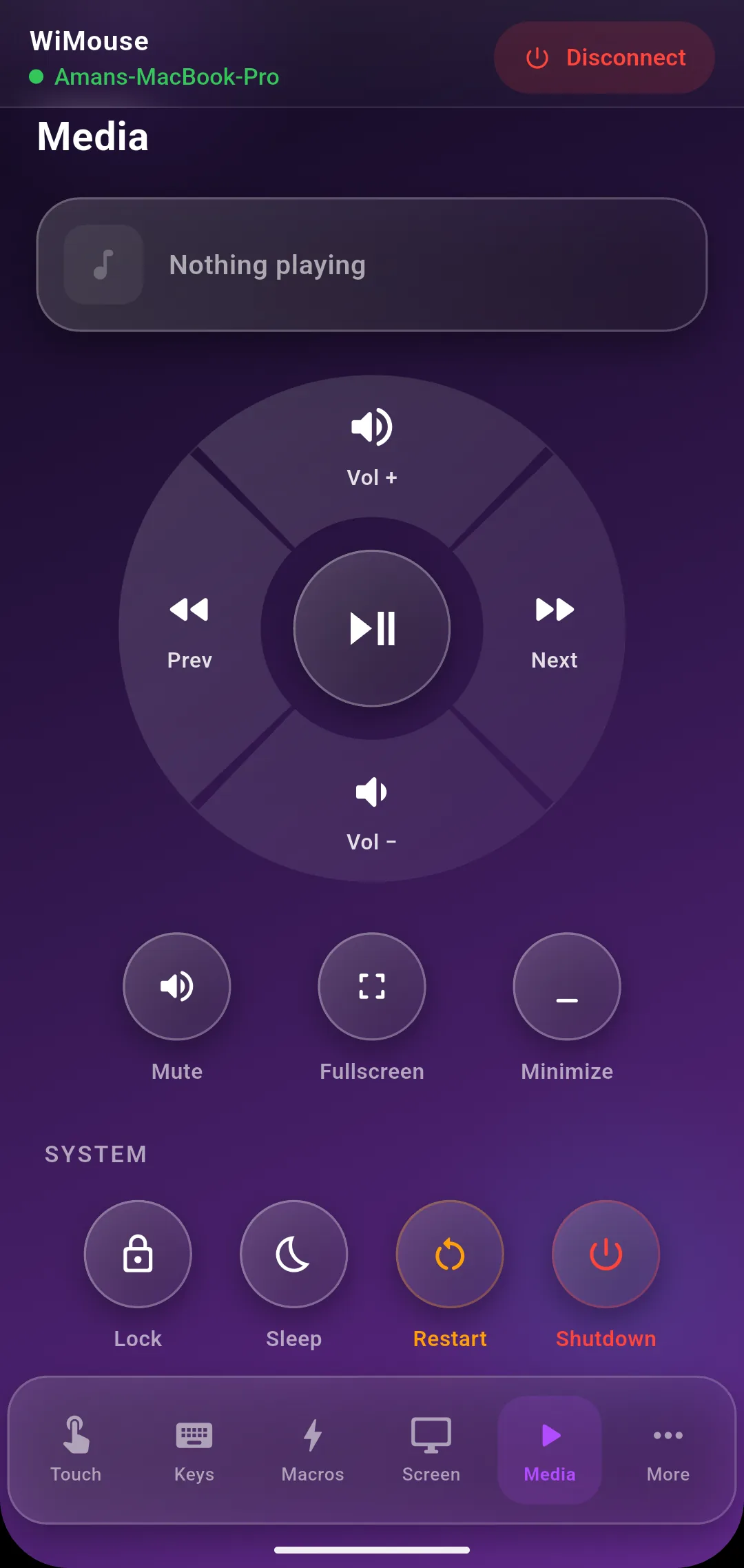
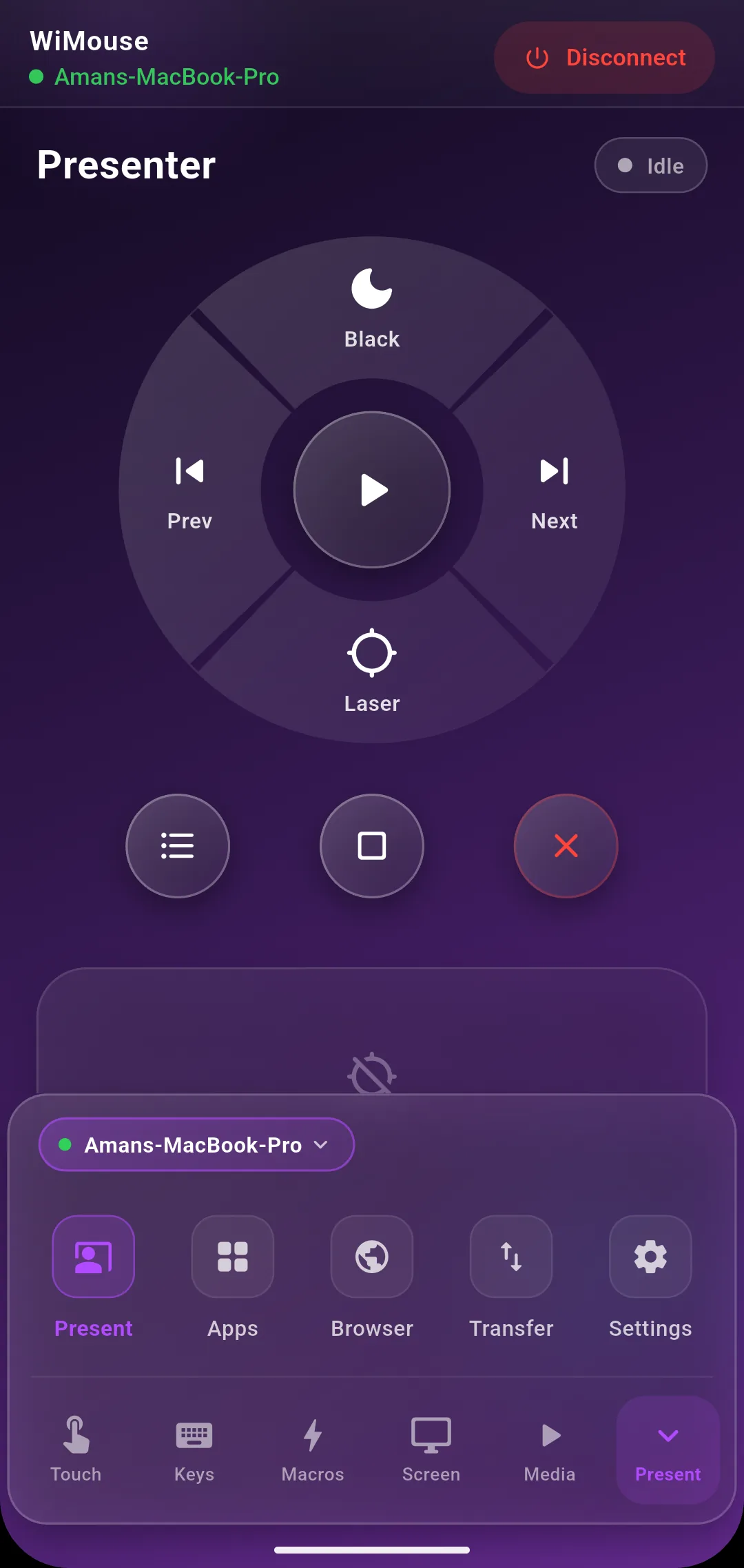
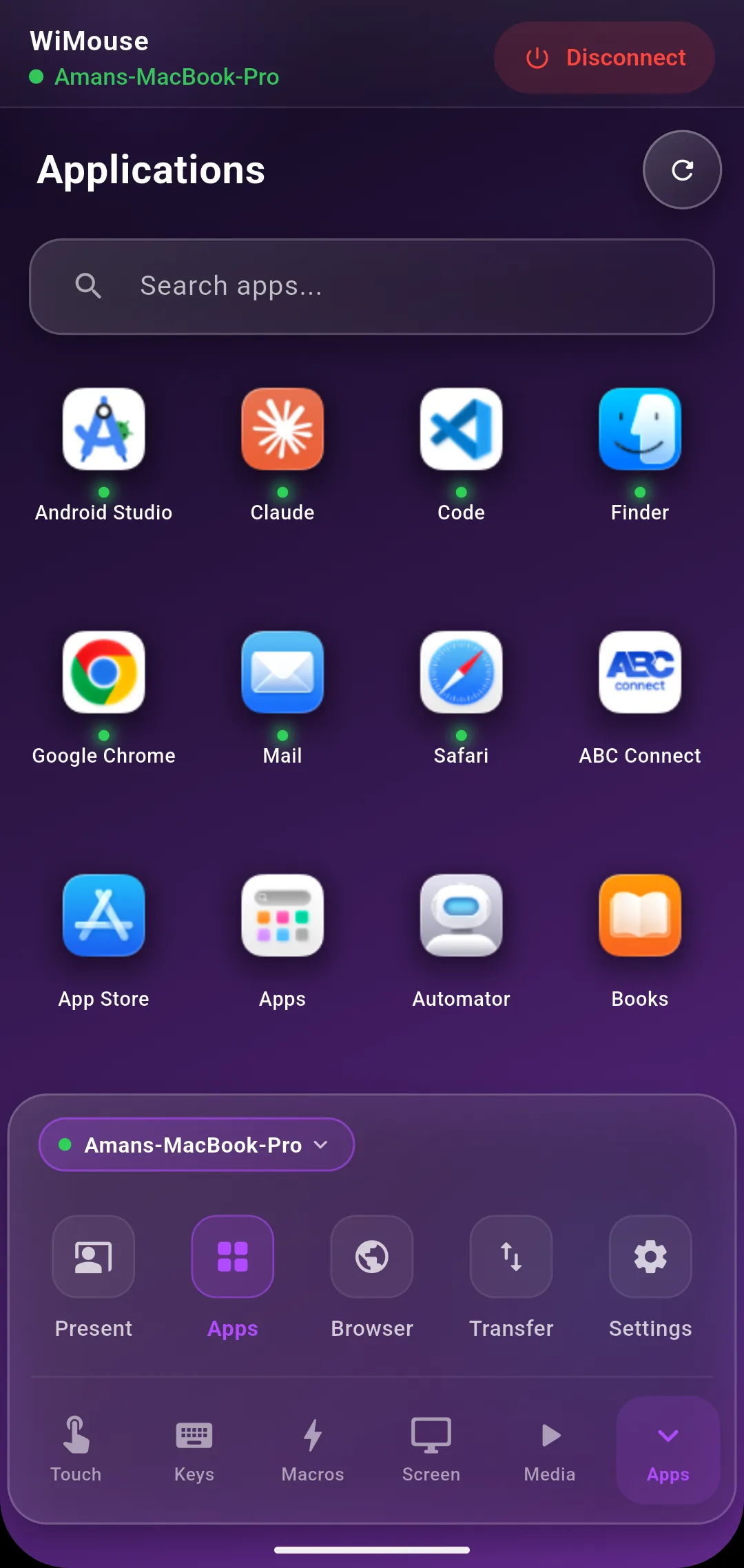
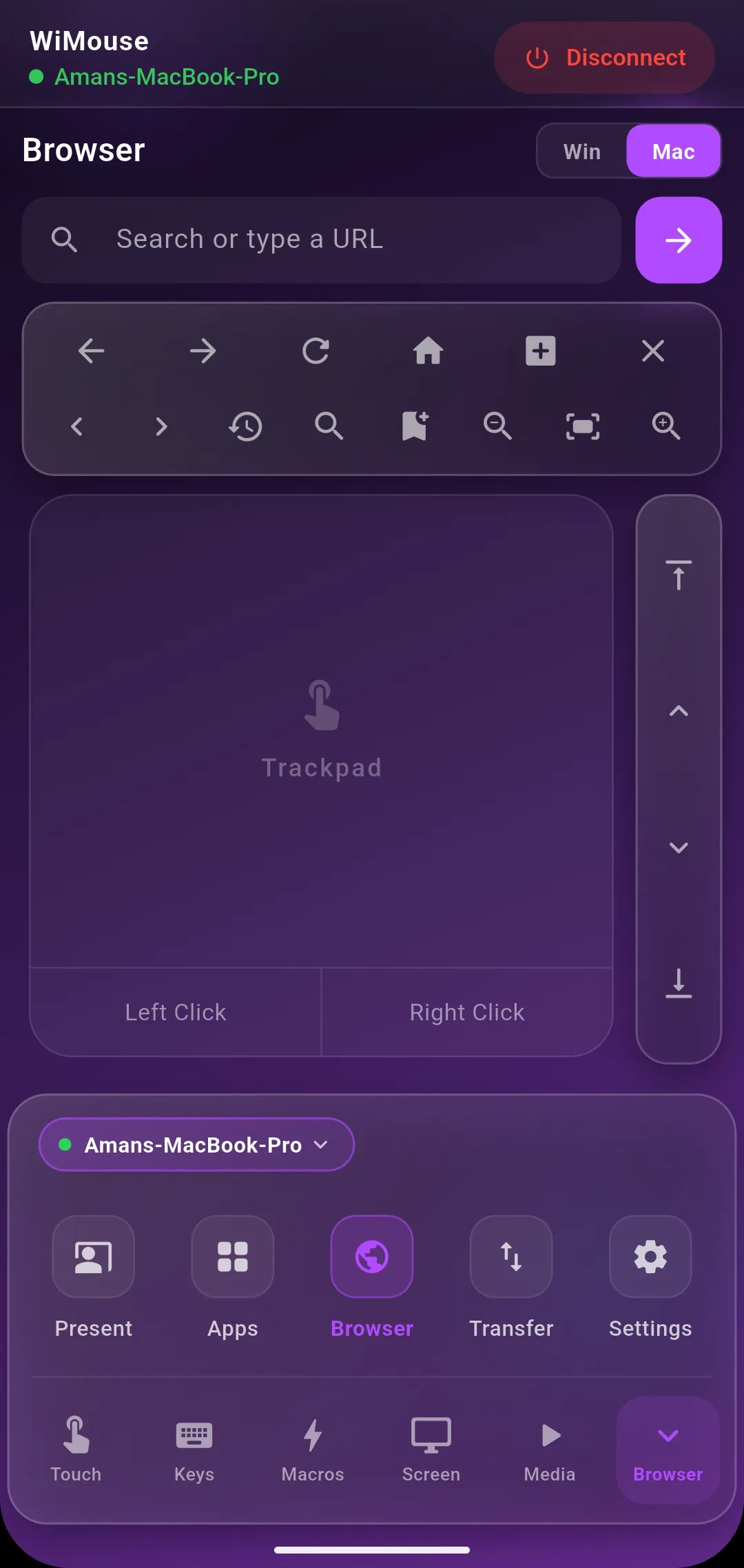
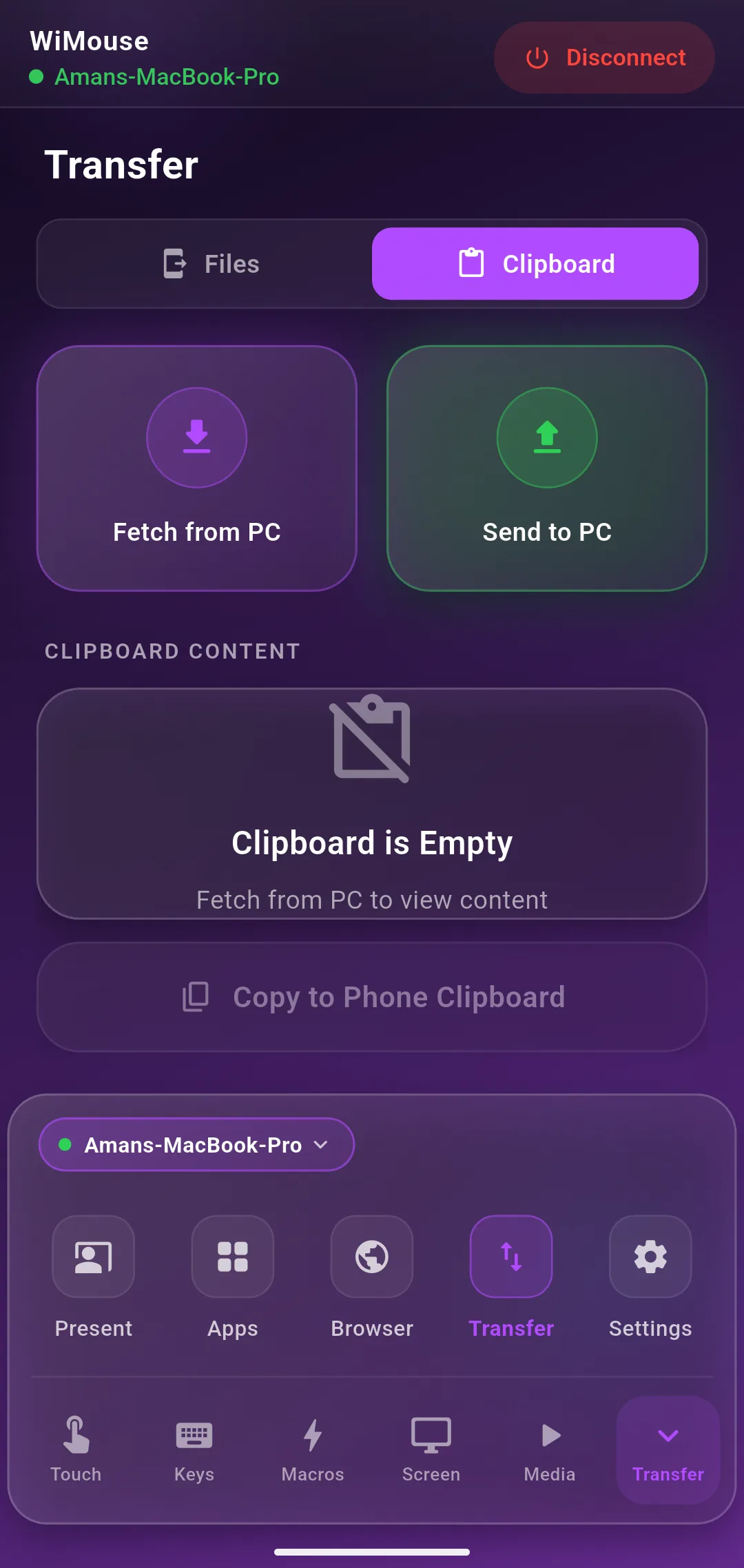
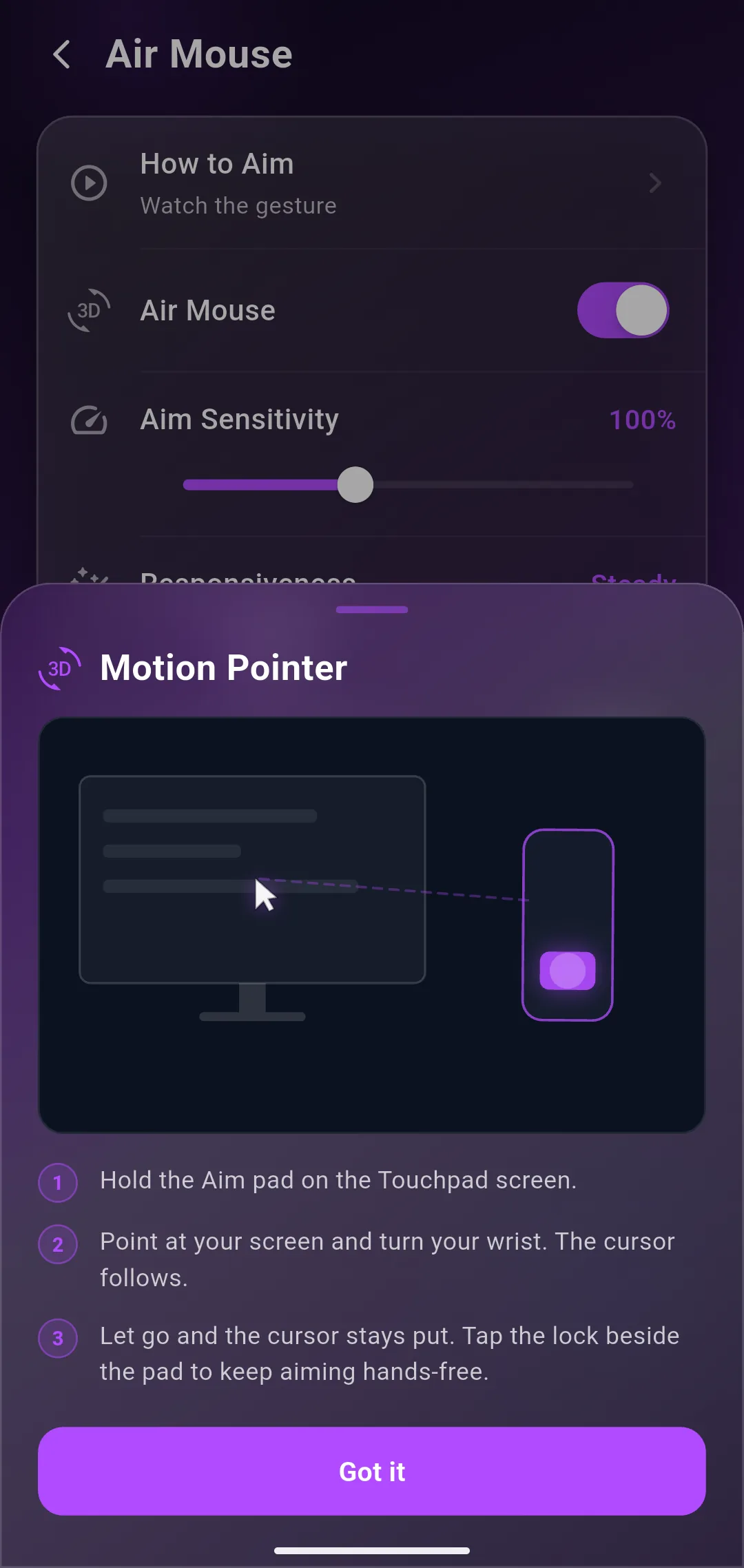
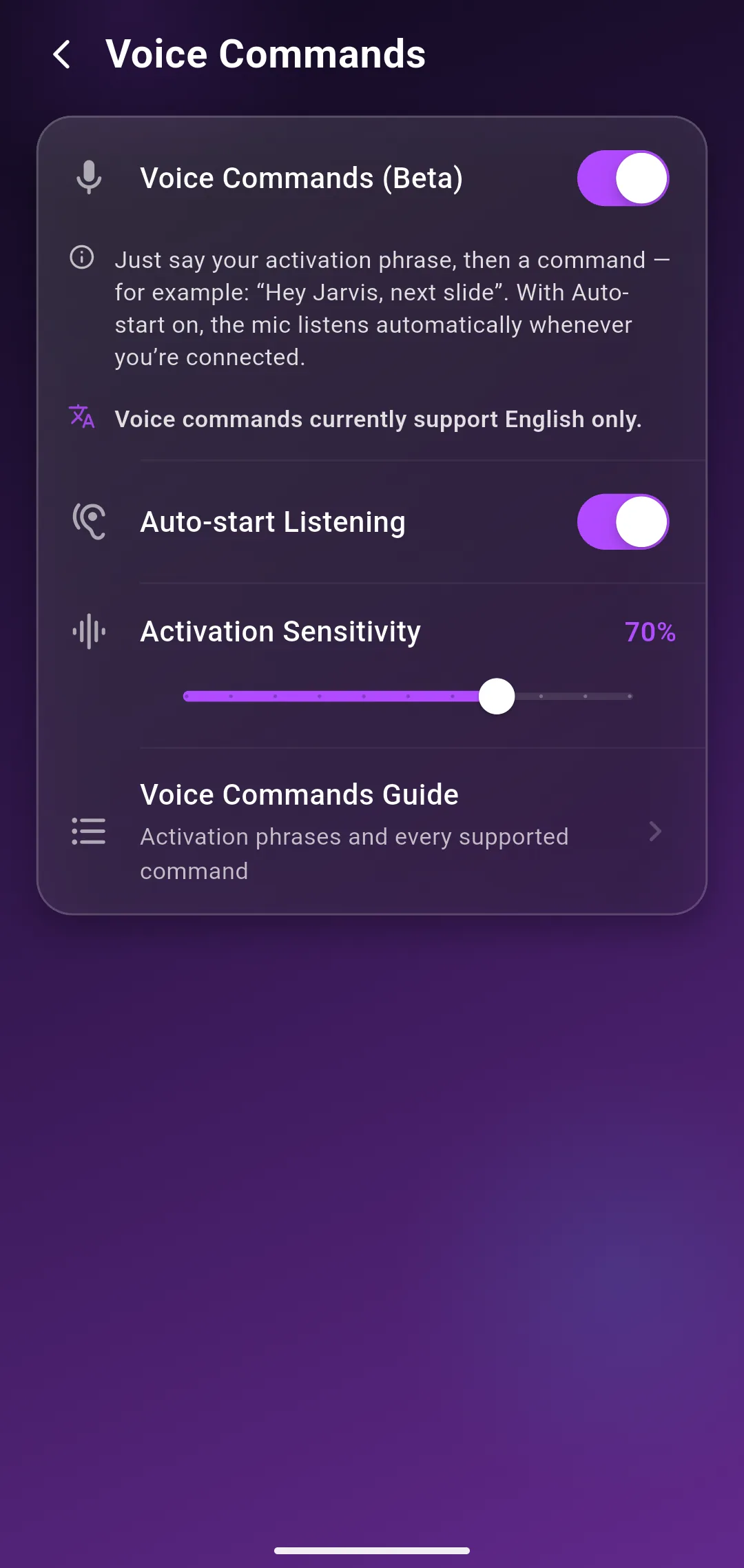
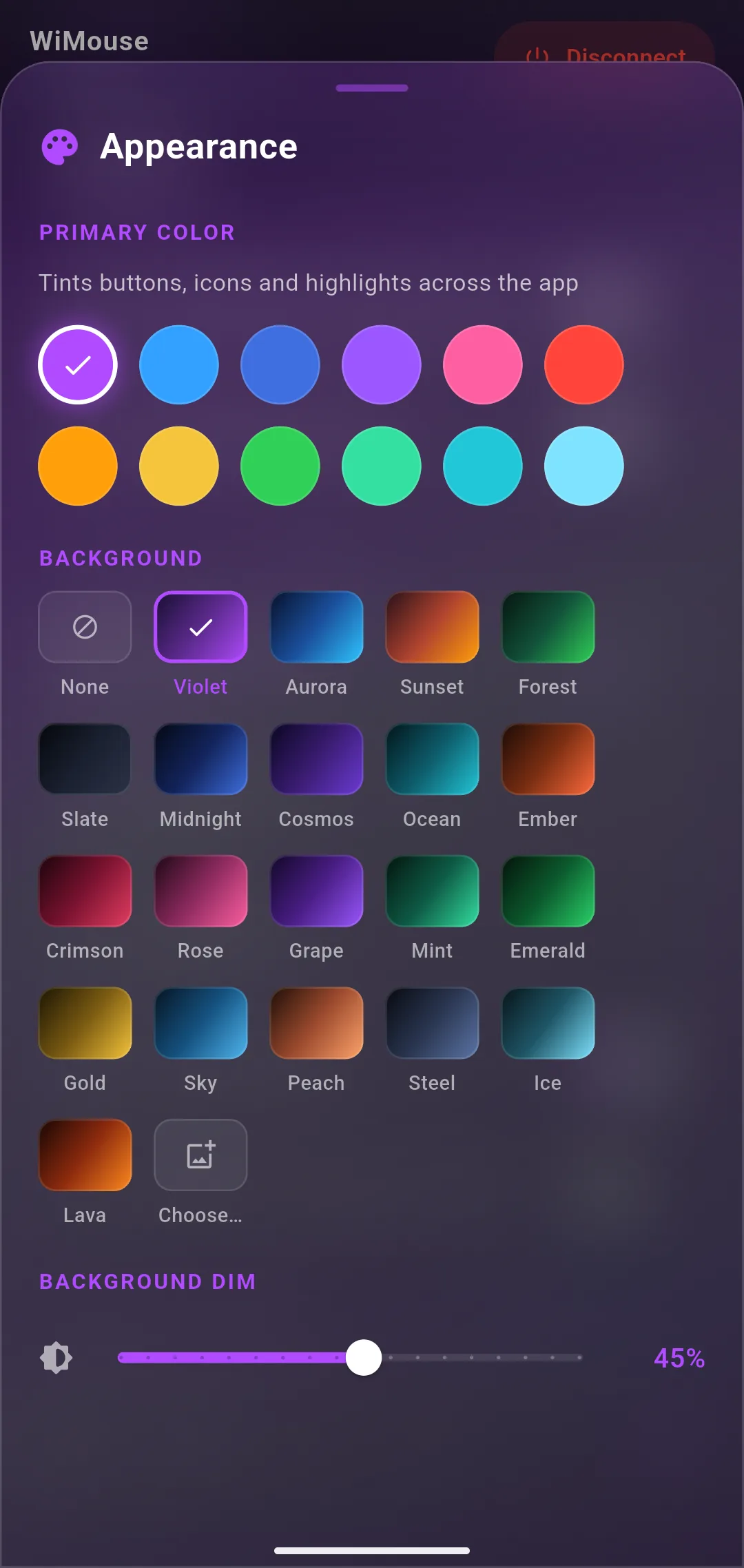
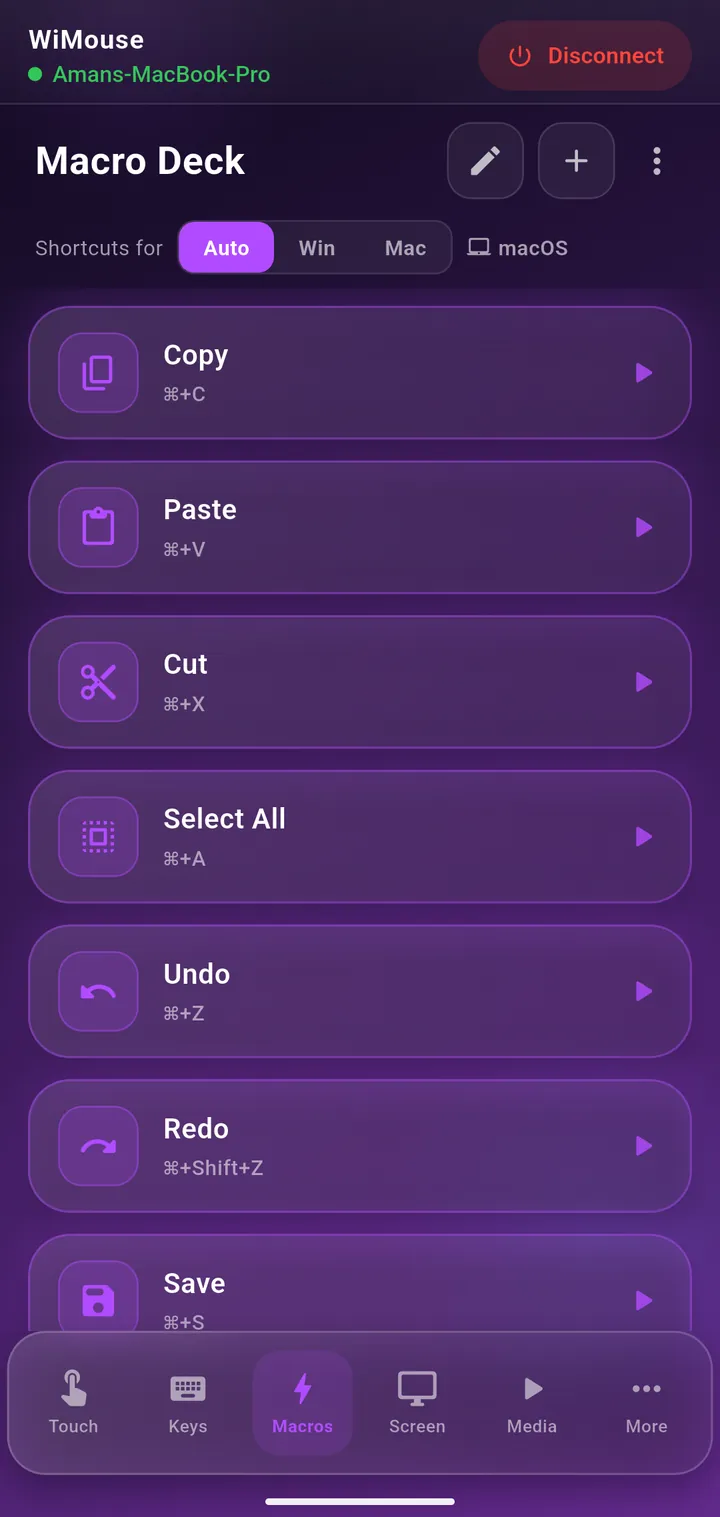
Available for Android, iOS, Windows & macOS

Control your PC or Mac with Zero Latency.

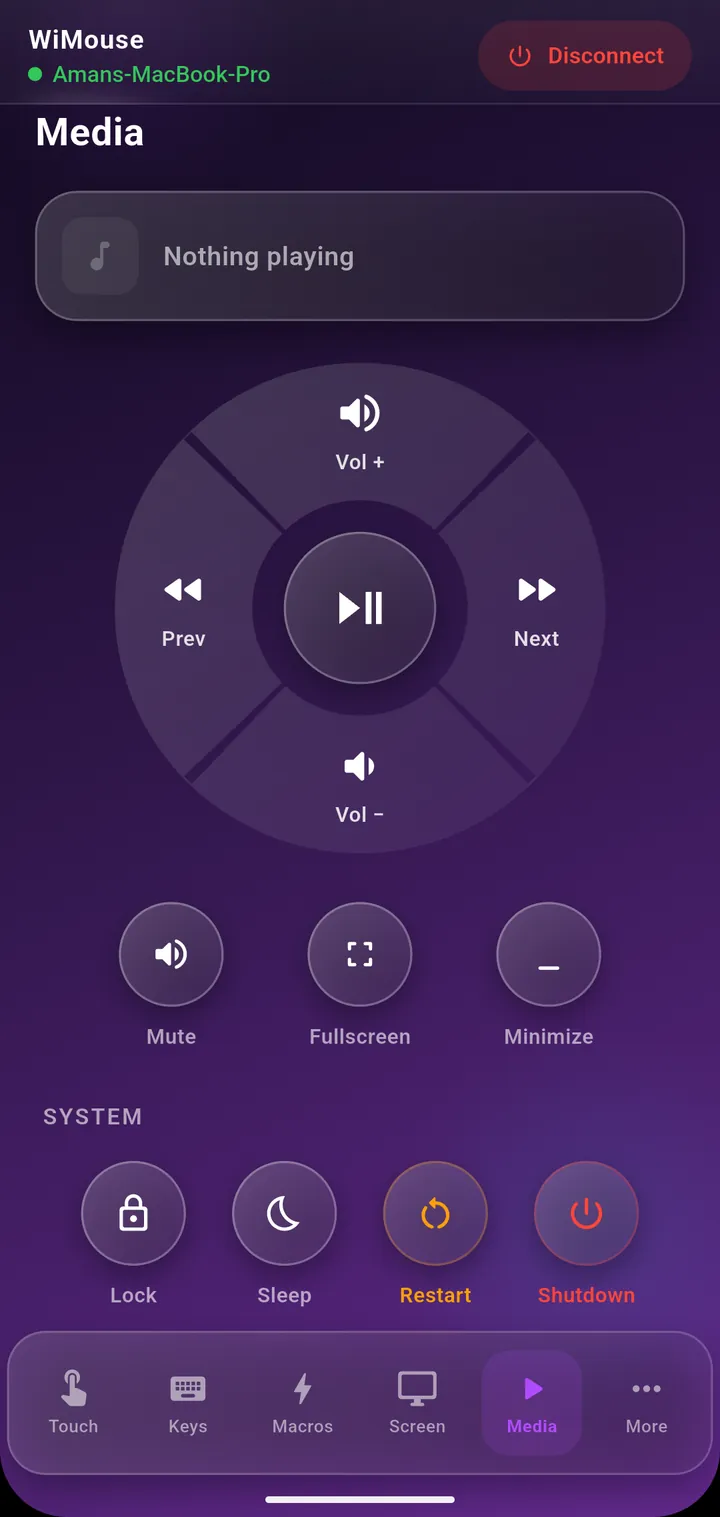
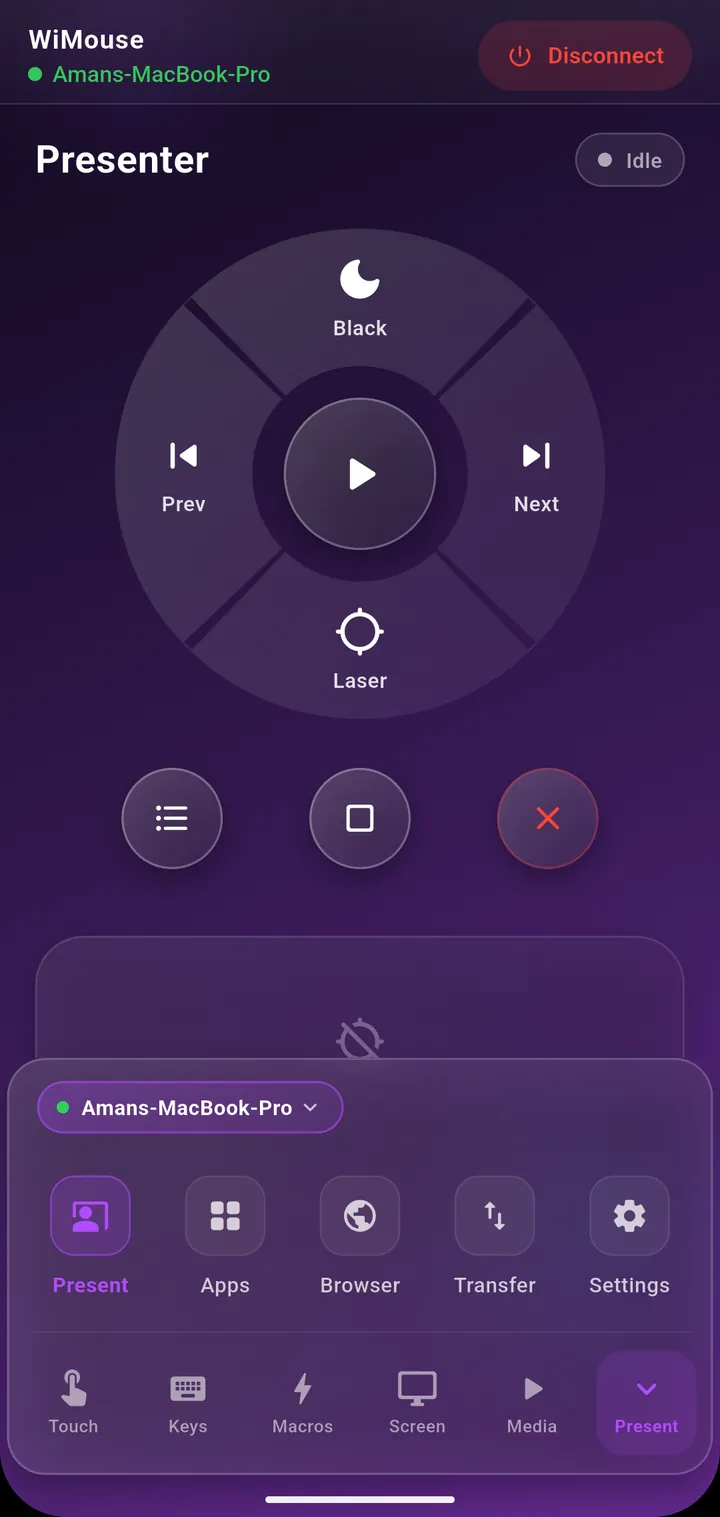
Transform your Android or iPhone into a wireless, multi-touch trackpad and custom keyboard. Works entirely over your local Wi-Fi. No cloud, no lag.

WiMouse Mobile
Remote Mouse & Keypad
GET IT ON Google Play
Windows
WiMouse - Remote Mouse Desktop
Download from Microsoft Store
iOS App
WiMouse - Remote Mouse
Download from App Store
macOS
WiMouse – Remote Mouse for PC
Download for Mac

Lightning Fast

Built with raw WebSockets. Experience buttery smooth cursor movements without the cloud lag.

Multi-Touch Gestures

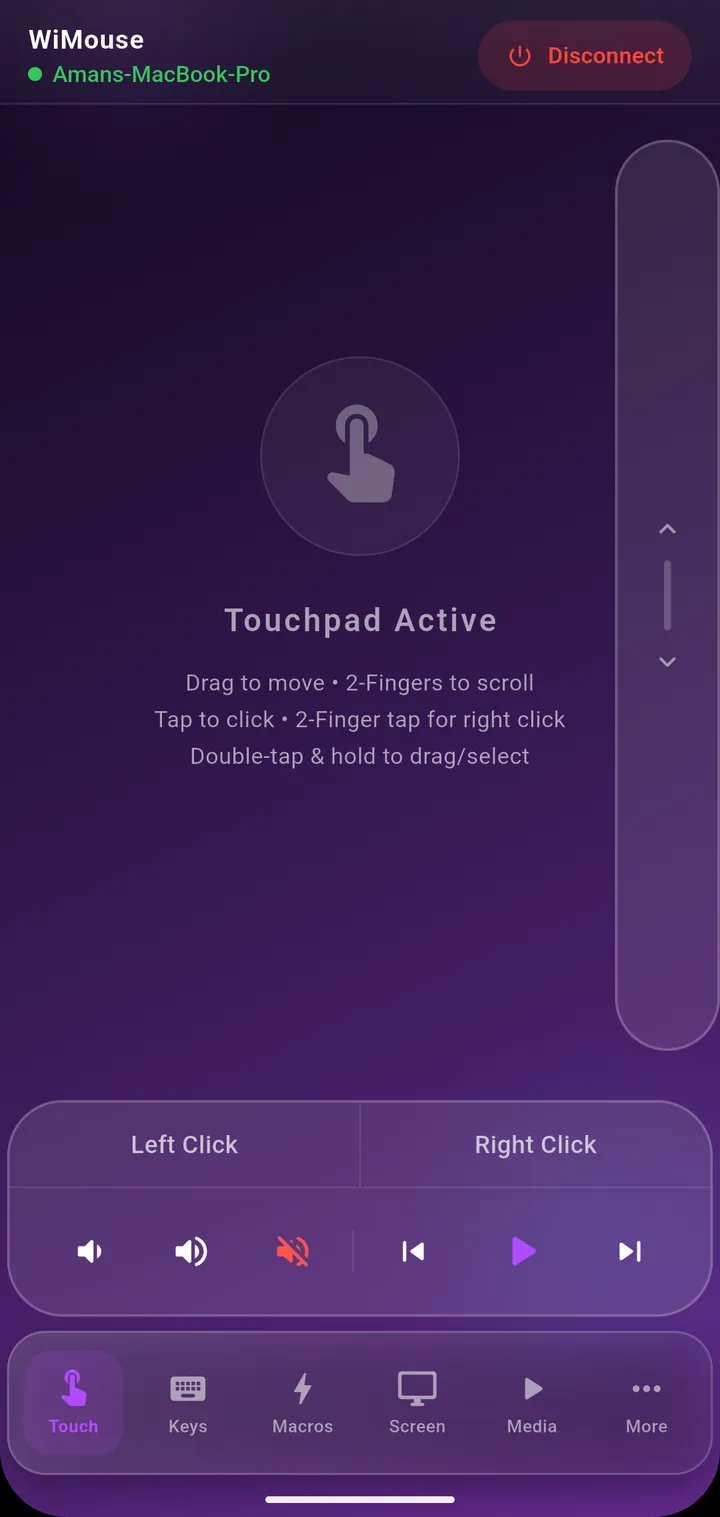
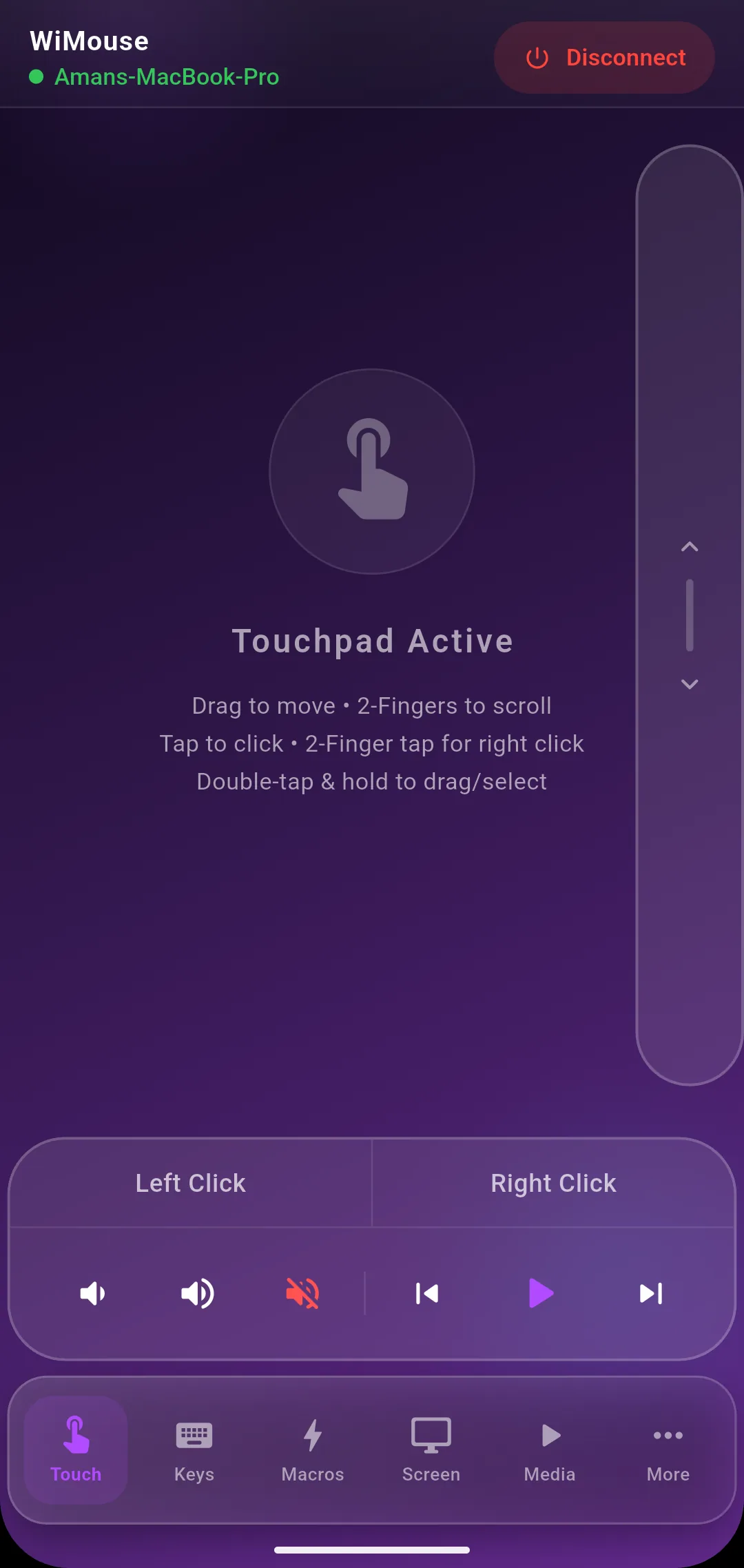
Two-finger scroll, right-click, and double-tap to drag. Feels just like a premium physical trackpad.

100% Secure & Local

Your keystrokes never leave your room. The app connects directly to your PC over your local network.

How it Works

Getting started takes less than a minute. Just follow this simple flow.

1

Download Both Apps

WiMouse requires two components to function: the desktop app on your computer that receives commands, and the remote app on your phone that sends them.

  • Install WiMouse Remote Mouse for PC on your Windows PC or Mac.
  • Install WiMouse Remote Mouse on your Android or iPhone.
2

Connect to the Same Wi-Fi

For zero-latency and maximum security, WiMouse routes traffic locally. Ensure your phone and PC or Mac are connected to the exact same Wi-Fi router or network.

3

Launch the Desktop App

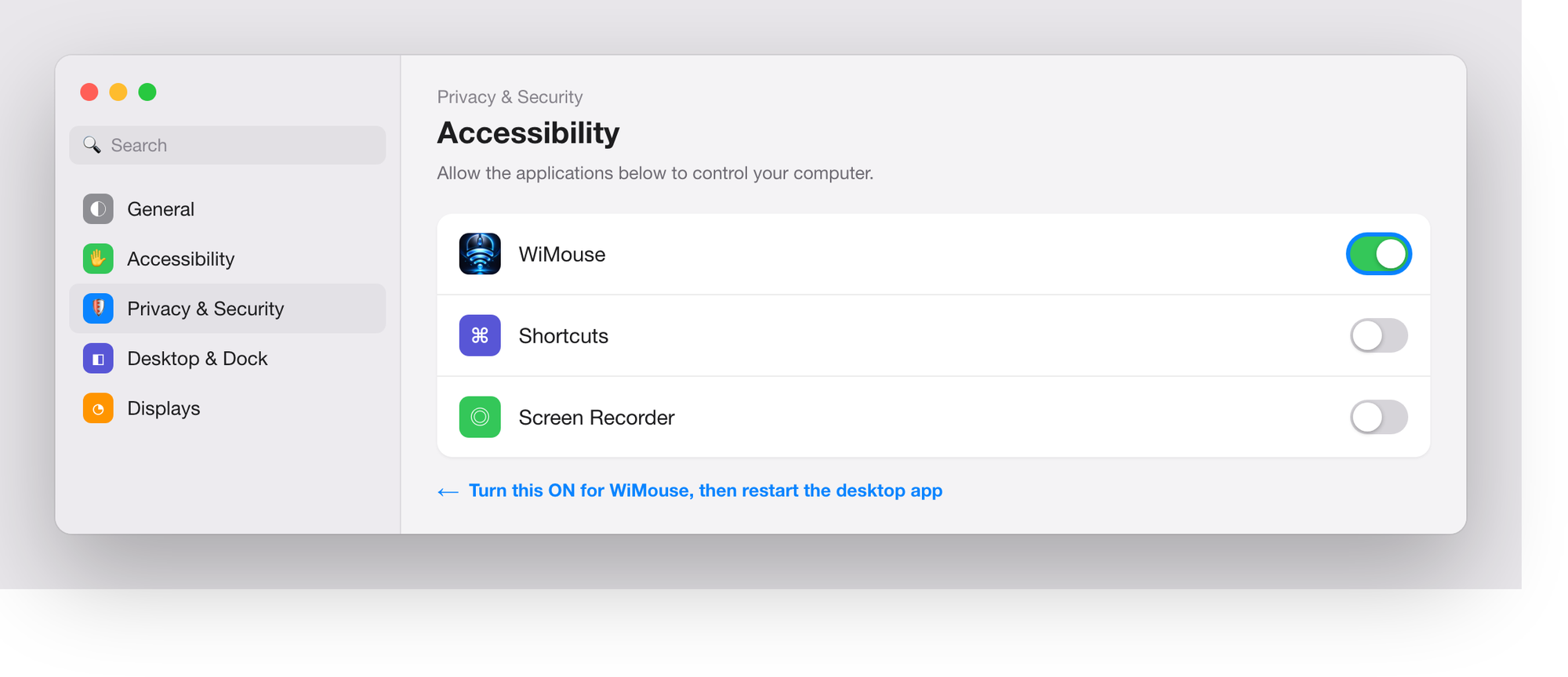
Open WiMouse - Remote Mouse Desktop on your Windows PC or Mac. It will automatically start listening for your phone. It runs silently in the background — on Windows it can be accessed from the System Tray (bottom right), and on Mac from the menu bar.

4

Pair Your Devices

Open the WiMouse Mobile app on your Android or iPhone. The app will auto-discover your PC or Mac. Simply tap on your computer's name in the list to establish a secure connection instantly.

You're in Control!

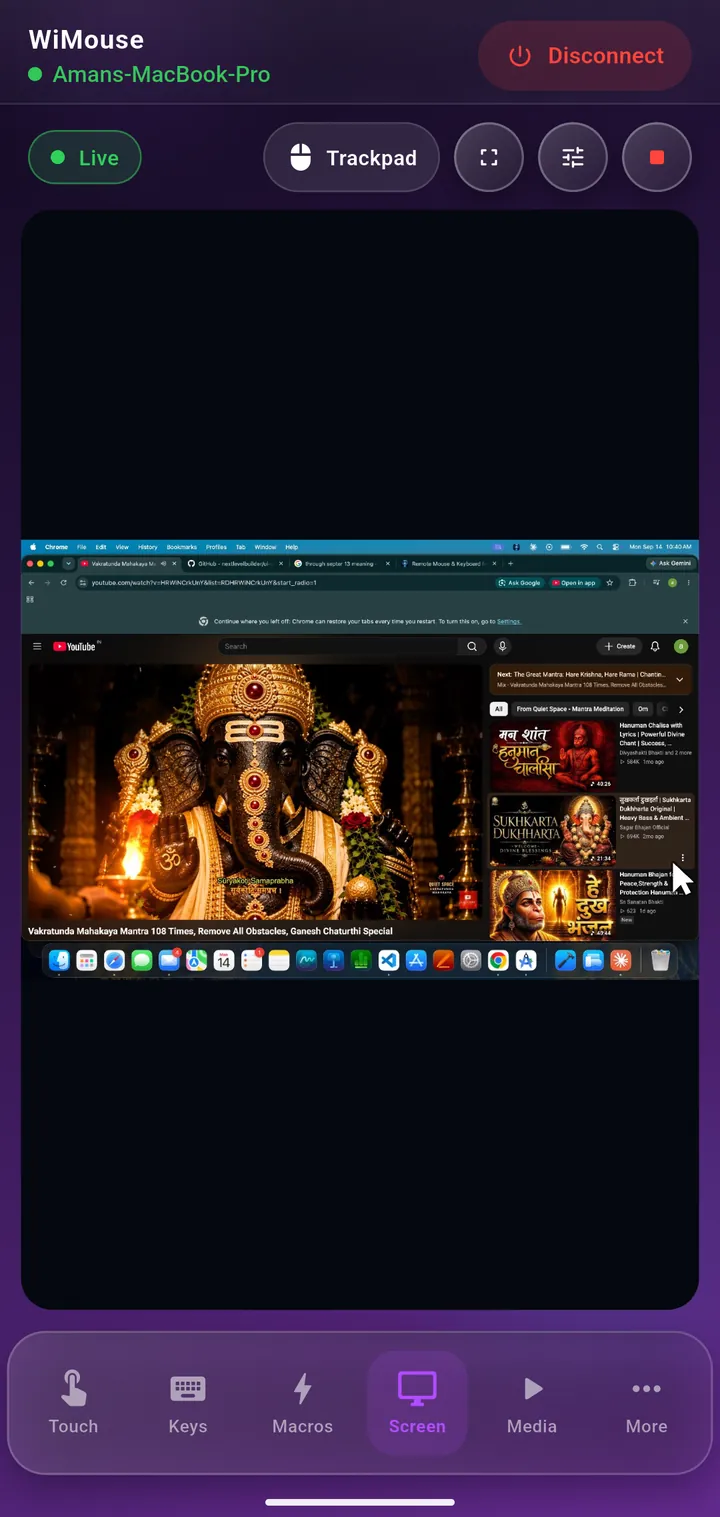
That's it! Your phone screen is now a massive, responsive trackpad. Swipe to move the cursor, tap to click, use two fingers to scroll, or pull up your phone's native keyboard to type directly onto your PC or Mac.

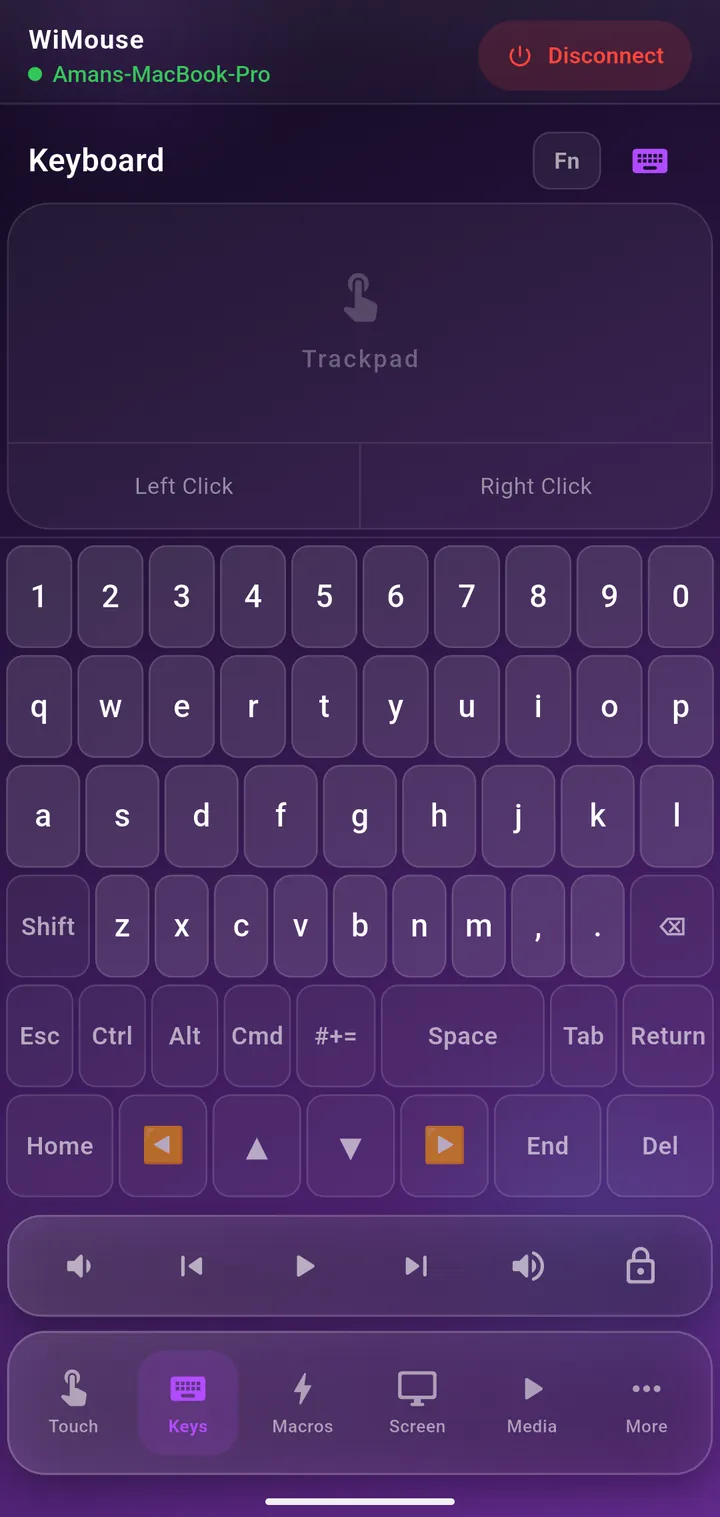
More than just a mouse. It's a full remote keyboard.

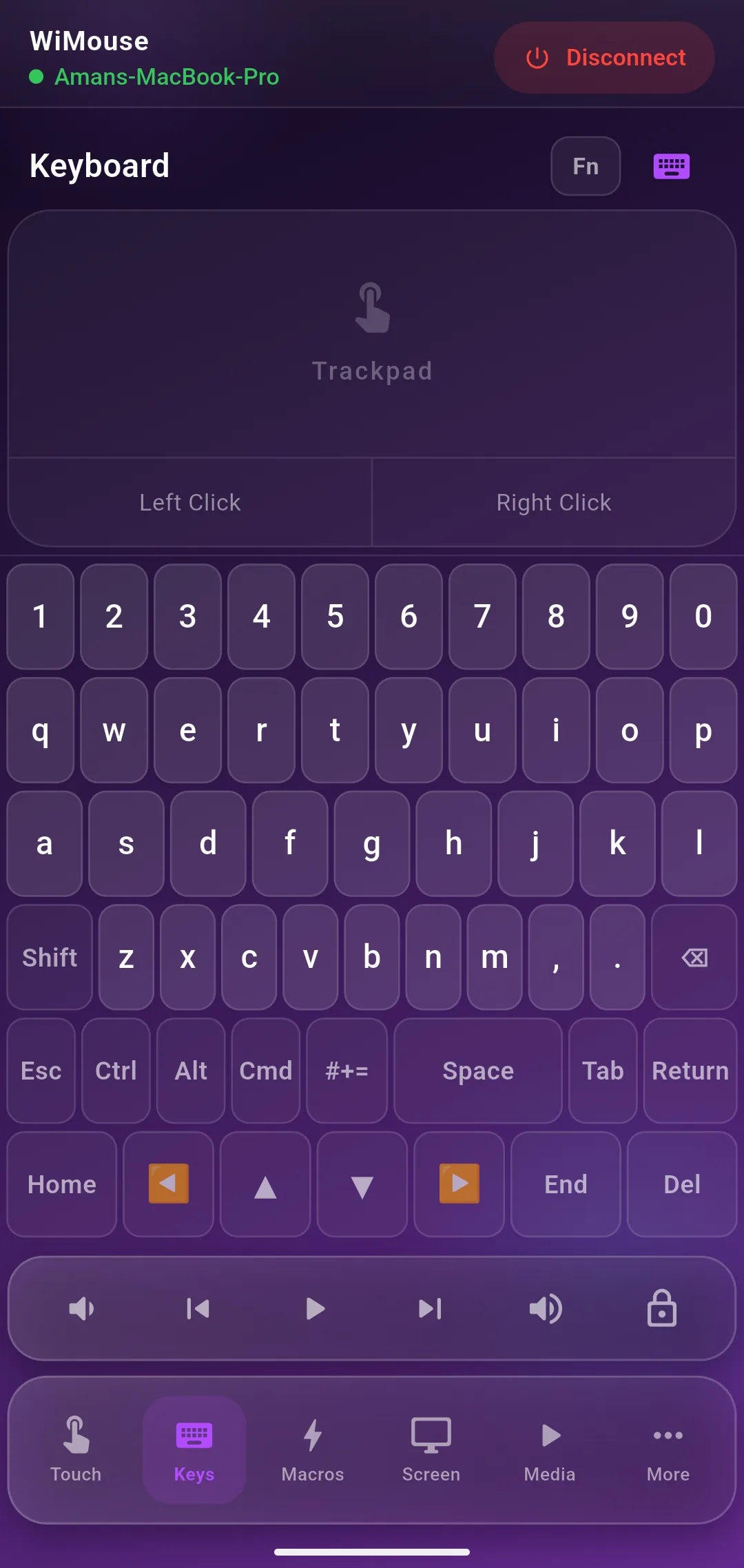
Why get up from the couch? WiMouse lets you type directly onto your PC or Mac using your phone's native keyboard. Perfect for searching movies, entering passwords, or quick replies.

  • Supports special keys (Ctrl, Alt, Shift, Esc)
  • Type in any language your phone supports
  • Instant transmission with zero dropped keys

Frequently Asked Questions

Do I need an active internet connection?

No. WiMouse works entirely over your local Wi-Fi network (LAN). As long as your phone and PC or Mac are connected to the same router, it will work—even if your internet goes down.

Is there support for Mac or iOS?

Yes! WiMouse is fully available across the entire ecosystem. You can download the remote app for iOS and Android, and the desktop app for Windows and macOS.

Why do I need a Desktop app on my computer?

Windows and macOS natively require a receiving app to interpret the commands coming from your phone (like moving the cursor or pressing a key). Our lightweight desktop app handles this seamlessly in the background.

Ready to upgrade your workflow?

Download the desktop app on your computer and the mobile app on your phone to get started immediately.