How to use your phone as a mouse and keyboard for a Windows PC
A step-by-step setup for Windows, the gestures worth learning first, and what to check if your PC does not appear in the list.
A wireless mouse is one more thing to buy, charge and lose. If your phone is already on the same Wi-Fi as your PC, it can do the job instead — as a multi-touch trackpad, a full keyboard, and a media remote for whatever is playing.
This guide sets that up on Windows in about a minute, then covers the gestures worth learning and what to check if the two devices do not find each other.
What you need
Two free apps and one network:
- The phone app, from Google Play or the App Store.
- The desktop app for Windows 10 or 11, from the Microsoft Store.
- Both devices on the same Wi-Fi network. Nothing is sent over the internet, so no account or sign-in is involved.
Setting it up
- Install both apps and launch the desktop one. It sits in the system tray rather than taking over your screen.
- Open the phone app. It scans the network and lists the computers it finds by name.
- Tap your PC. If you have set a pairing password on the desktop, type it once — the phone remembers it afterwards.
- The touchpad opens, already connected. Drag a finger and your cursor moves.
If you would rather not use the Microsoft Store, the desktop app is also on the download page.
The gestures worth learning first
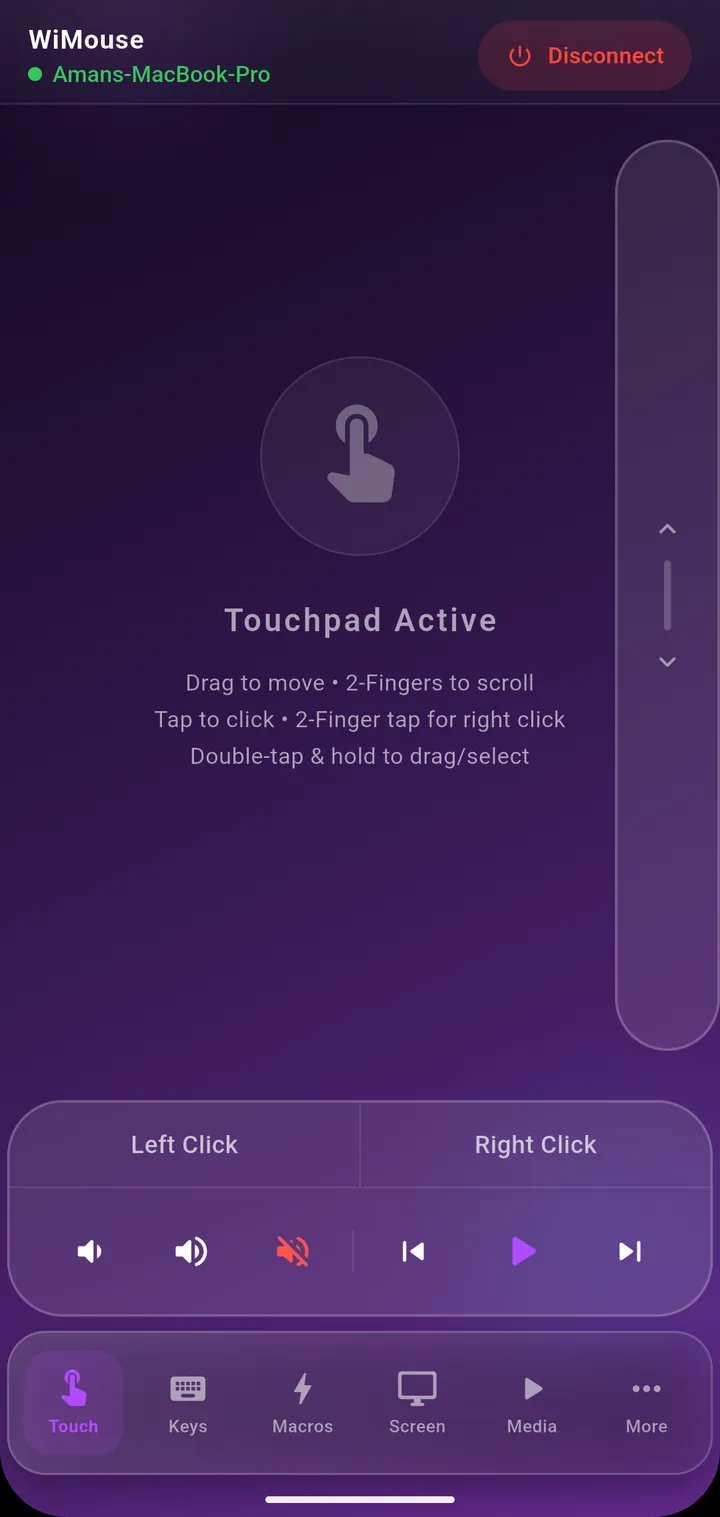
- Tap to left-click, anywhere on the pad.
- Two-finger tap to right-click, so you never need to aim for a second button.
- Two fingers dragged up, down or sideways to scroll.
- Double-tap and hold, then drag, to select text or move a window.
- Left and right click buttons under the pad, when you want them.
Mouse speed and scroll speed have their own sliders in Settings, which is worth two minutes if the cursor feels fast on a large monitor.
Typing from the phone
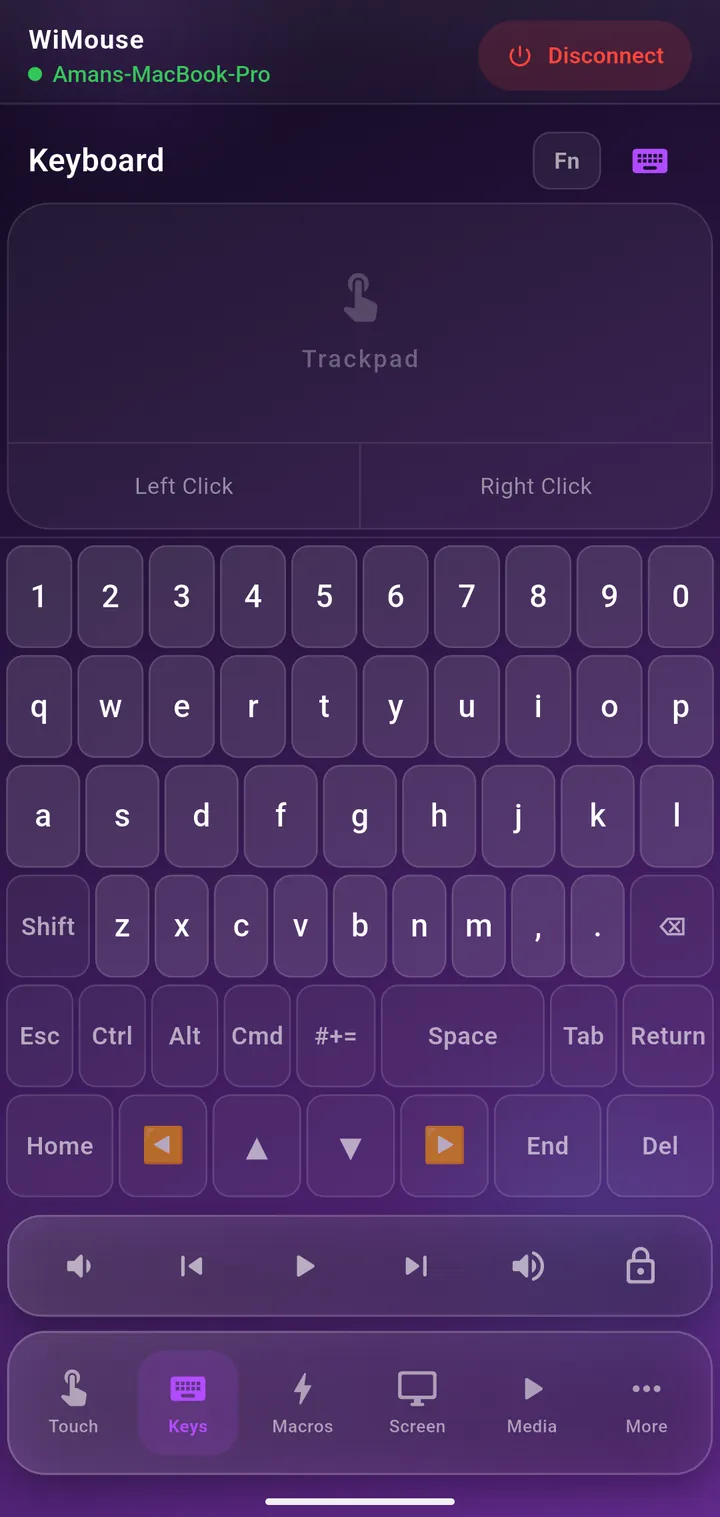
The Keys tab types straight into whatever is focused on the PC. It keeps the keys a phone keyboard normally hides — Ctrl, Alt, Shift, Tab, Esc, the function row and the arrows — so Ctrl + C, Alt + Tab and F5 all work from the sofa.
For anything you type often, the Macros tab holds one-tap buttons with the right Windows key combination behind each one. The Essentials pack is free; WiMouse Pro adds the full catalogue of ready-made shortcuts.
If your PC does not appear
- Check the network. Phones often sit on a guest network or a 5 GHz band that is isolated from the rest of the house. Both devices must be on the same one.
- Let the app through the firewall. On the first run Windows asks whether to allow WiMouse on private networks — say yes. If it was refused, allow it in Windows Defender Firewall → Allow an app.
- Check the desktop app is running. It lives in the tray; if you closed it, discovery has nothing to answer.
- Type the address by hand. The desktop app shows its IP address. Entering that on the phone skips discovery entirely, which is useful on networks that block broadcast traffic.
Is it safe on a shared network?
The phone and the computer agree on a key using X25519 key exchange and encrypt every command with AES-256, and the traffic never leaves your LAN. You can also require a password before a new phone is allowed to pair, which is worth switching on in an office or a shared flat.
Curious what the whole thing looks like before installing anything? Watch the 55-second demo.
Get WiMouse
Free on Android and iPhone, with a free desktop app for Windows and macOS. Everything runs on your local Wi-Fi, encrypted with AES-256, in 54 languages.