Use your phone as a presentation remote for PowerPoint and Keynote
Advance slides, jump back, start from the beginning and point with an on-screen laser — without standing next to the laptop.
Clicker remotes cost money, need a dongle and always have a flat battery on the morning you need them. The phone in your pocket can advance slides just as well, and it can point at the screen too.
What the presenter tab does
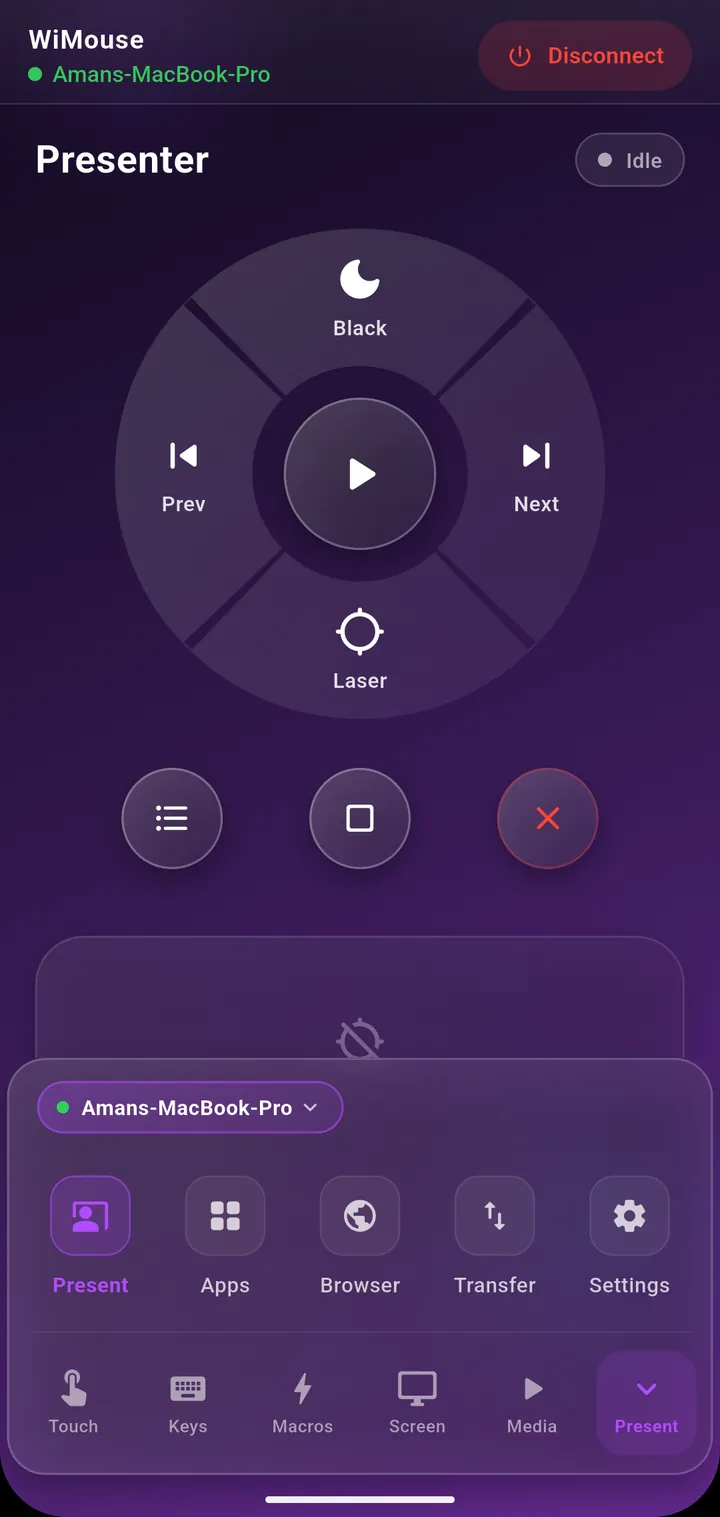
- Next and previous slide, the two buttons you actually use.
- Start from the beginning or from the current slide.
- Exit the slideshow without hunting for Esc on the laptop.
- Laser pointer — a native overlay that follows your aim, on whichever display you choose.
The buttons send the real keyboard shortcuts that PowerPoint and Keynote expect, with separate Windows and macOS mappings, rather than a generic arrow key press. That is why the same button works in both apps.
Before you present
- Connect the phone to the computer on the venue's Wi-Fi, or a phone hotspot if the venue network isolates devices from each other.
- Open your deck and start the slideshow once from the phone, to confirm the mapping works in the app you are using.
- Pick the display for the laser pointer if you are mirroring to a projector.
- Put the phone in your hand, not on the lectern — the whole point is being able to walk.
Two habits that make it look effortless
First, use the laser sparingly. A dot that circles constantly is harder to follow than a still one placed on the thing you are talking about.
Second, keep the media tab one swipe away if your deck contains video. Play, pause and volume are right there, so you are never walking back to the laptop mid-clip.
If the room's Wi-Fi is locked down, connect the laptop to your phone's hotspot before the talk. Commands still travel directly between the two devices, and nothing goes over the internet.
Keep reading
See the presenter in context in the 55-second demo, or set the app up first with the Windows guide.
Get WiMouse
Free on Android and iPhone, with a free desktop app for Windows and macOS. Everything runs on your local Wi-Fi, encrypted with AES-256, in 54 languages.